Monitoring

Accessing your logs

Every request to your Fyra app is logged. The fyra logs command gives you multiple ways to view, filter, pipe, and export those logs — whether you want a live terminal dashboard or a file you can hand off to another tool.

1

Open the log viewer

Run fyra logs from any directory that has a .deploy.yaml file. This launches an interactive terminal UI that streams new requests in real time.

Terminal
$ fyra logs
 Time               Status  Method  Path          Cache  IP        Duration
 14:23:45           200    GET     /index.html   HIT    1.2.3.4   5ms
 14:23:46           200    GET     /about.html    MISS   1.2.3.4   12ms
 14:23:48           404    GET     /old-page      MISS   5.6.7.8   3ms

The viewer polls for new entries every 3 seconds. Logs are deduplicated across server nodes, so you see a single coherent stream.

2

Navigate the TUI

Use keyboard shortcuts to move around and inspect individual requests:

Space Pause or resume the live stream
↑ / ↓ Scroll through log entries
Enter Inspect a selected request in detail
t Toggle between UTC and local time
Esc Exit inspect view or quit

Scroll past the bottom to load older entries automatically — the viewer paginates backwards as needed.

Pressing Enter on a row opens a detailed view of that request:

Request Detail
 Timestamp:   2026-05-10 14:23:45
 Hostname:    app.fyra.sh
 IP:           1.2.3.4
 Method:       GET
 Path:         /index.html
 Status:       200
 Duration:     45ms
 Cache:        HIT
 Node:         node-xyz
 User-Agent:   Mozilla/5.0 (Macintosh; Intel Mac OS X 10_15_7)
 [Esc] back

The detail view shows the full user-agent string, the server node that handled the request, and cache status — information that doesn't fit in the table columns. Press Esc to return to the log stream.

3

Filter by time

Use --since to start from a specific point in time. Accepts relative expressions or absolute timestamps.

Relative time
$ fyra logs --since "1 hour ago"
$ fyra logs --since "2 days ago"
Absolute timestamp
$ fyra logs --since "2026-04-24T00:00:00Z"
4

Pipe logs to other tools

When stdout is redirected or piped, the TUI is replaced with a plain-text stream — one log line per request. Use --format to control the output shape and --follow to keep streaming new entries as they arrive.

Available formats
table     human-readable table (default in the TUI)
json      one JSON object per line
clf       Apache Common Log Format
combined  CLF + referer + user-agent
Pipe to grep for 404s
$ fyra logs --format combined | grep " 404 "
1.2.3.4 - - [24/Apr/2026:14:23:48 +0000] "GET /old-page HTTP/1.1" 404 0 "-" "curl/8.7.1"
5.6.7.8 - - [24/Apr/2026:15:01:12 +0000] "GET /deleted-route HTTP/1.1" 404 0 "-" "Mozilla/5.0"
Stream live logs with --follow
$ fyra logs --format combined --follow | grep " 404 "

The --follow flag keeps the connection open and prints new lines as requests come in. Combine it with grep, jq, awk, or any tool that reads from stdin.

5

Export logs to a file

Use --output to dump logs directly to a file without the TUI. Fyra fetches all available pages and writes them out. This is the easiest way to get a file you can feed into log analysis tools.

Terminal
$ fyra logs --format combined --output logs.combined
Fetching logs...
Wrote 1,247 entries to logs.combined

The combined format is recommended for file exports — it includes referer and user-agent data that most analysis tools expect.

No logs yet? Logs only appear after your first fyra push. If you've just deployed, give it a minute and try again.

Monitoring

Visualizing logs with GoAccess

GoAccess is an open-source log analyzer that turns request logs into interactive dashboards. Because fyra logs can output in Apache Combined Log Format, the two work together out of the box — no custom parsers needed.

1

Install GoAccess

GoAccess is available in most package managers:

macOS
$ brew install goaccess
Ubuntu / Debian
$ sudo apt install goaccess
2

Real-time terminal dashboard

Pipe fyra logs directly into GoAccess for a live terminal dashboard. The --follow flag keeps the stream open so new requests appear as they happen.

Terminal
$ fyra logs --format combined --follow | goaccess -

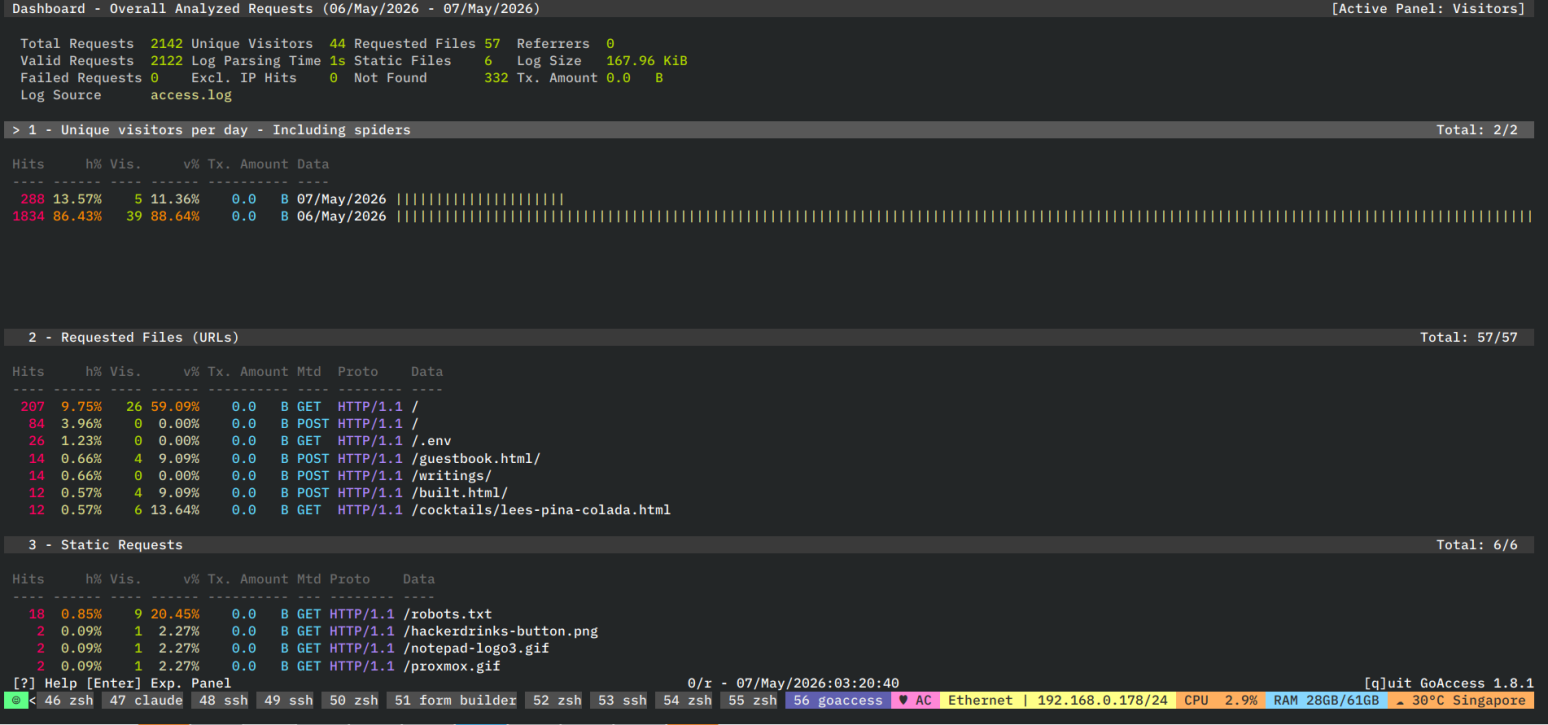
You'll see a live breakdown of visitors, requested URLs, 404s, response codes, bandwidth, and operating systems — all updated as traffic comes in.

GoAccess terminal dashboard showing real-time visitor stats, request counts, and response code breakdown

Why --format combined? The combined format includes referer and user-agent fields. GoAccess uses these to show browser stats, operating systems, and where your traffic is coming from — the plain CLF format omits this data.

3

Generate an HTML report

For a shareable dashboard you can open in a browser, first dump logs to a file, then generate a static HTML report.

Step 1 — export logs
$ fyra logs --format combined --output logs.combined
Wrote 1,247 entries to logs.combined
Step 2 — generate report
$ goaccess logs.combined -o report.html
Report generated: report.html

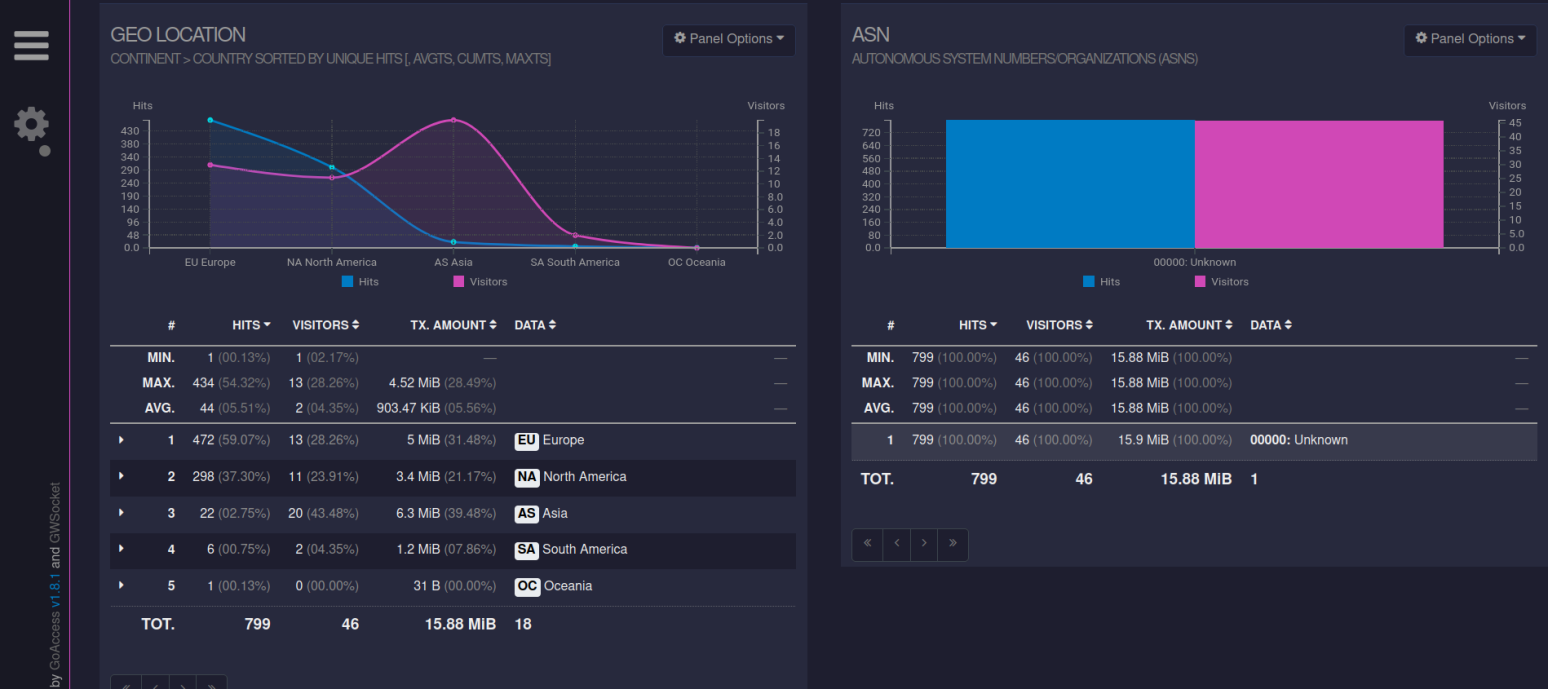
Open report.html in any browser. The report includes charts for unique visitors, requested files, 404s, visitor demographics, and more.

GoAccess HTML report dashboard showing visitor charts, requested URLs, and response code breakdown
4

Scheduled monitoring

For ongoing analysis, set up a cron job that exports logs nightly and generates a fresh report. Use --since to pull only the most recent entries each time.

Daily export (crontab)
# Every day at midnight: export last 24h and generate report
0 0 * * * fyra logs --format combined --since "1 day ago" --output ~/logs/daily-$(date +\%F).combined && goaccess ~/logs/daily-$(date +\%F).combined -o ~/logs/reports/$(date +\%F).html

This creates one report per day in ~/logs/reports/. You can open the latest report or compare traffic patterns across days.

Tip: For a full historical view, skip --since on your first export to grab all available logs, then use --since on subsequent runs to fetch only new entries.